Your Partner Portal gives you full access to view and manage your clients’ workspace—whether they’re individuals or entities.
You can review and adjust what your client sees when they log in, ensuring that all integrations, financial data, and personal details are accurate and up to date. This is especially helpful before granting access, allowing you to tailor the experience to suit each client’s needs.
Client Details
Tasks
Docs
Members & staff
Integration
Financials
1. Locate client in the portal.
a) You can quickly find a specific client by using the search bar located in the header of your portal.
b)You can access client details by navigating to Clients > Client List in the left-side menu and clicking the blue hyperlink for the client you'd like to view.
Viewing a Client’s Portal: What Information Is Available?
Client Details
Profile
This section allows you to update the client’s basic contact information—such as name, date of birth, and contact details—by clicking the blue edit or add icons in the relevant fields.
Login activities
This section gives you an audit of the member's last access date, device and IP Address.
Note: this information is not viewable by the client.
Furthermore, if the client is yet to activate their account, this is the section you can use to resend the invite, or send to a new email address.
Tasks
This section displays a list of tasks assigned to the client, their team members, or any assigned staff. Tasks can be easily viewed and managed here.
To create a new task, click the Add Task button—this allows you to assign a file upload, document signing, or acknowledgement task.
Use the tabs at the top of the section to filter tasks by status: Active, On Hold, Draft, or Archived.
Docs
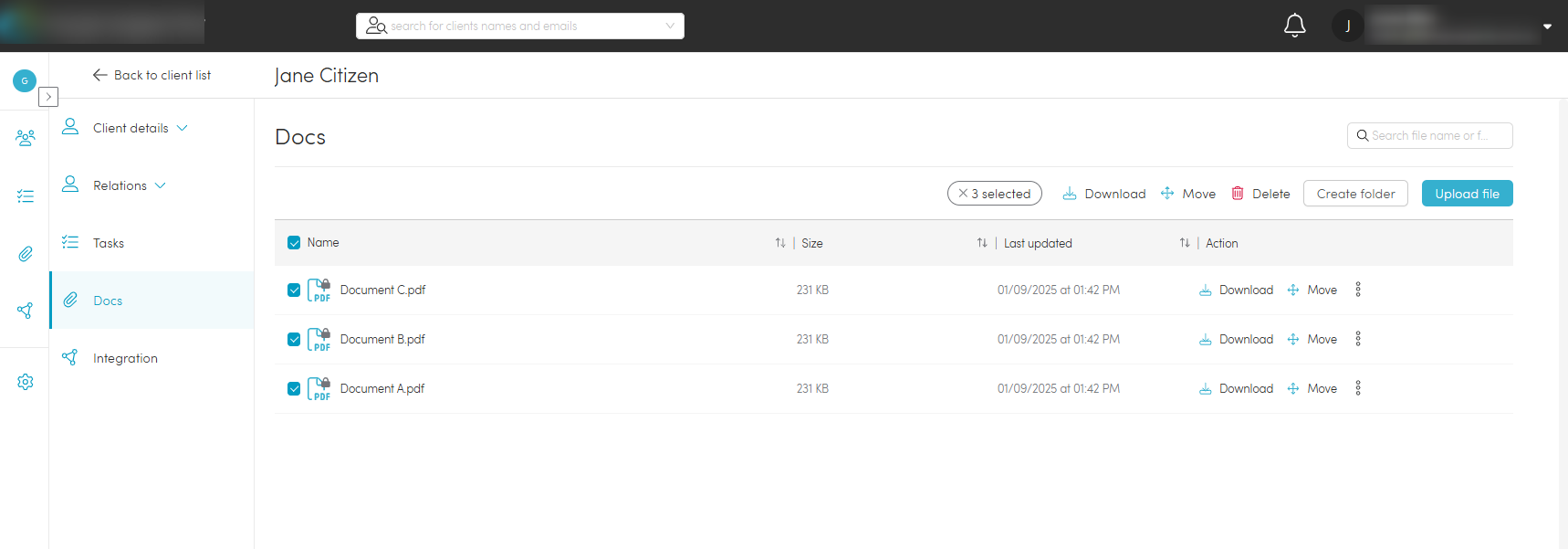
This section lets you manage documents uploaded by the firm or client, add files, create folders, move, download, or delete items to stay organised.
To protect critical data, files can be locked, preventing clients from deleting sensitive content for added security and control.
Members & Staff
Members
Members are individuals or entities who have access to the fund portal to view financial information available through the Class integration.
As part of the class integration sync, any members assigned within Class against a client/fund will be automatically imported, however, invitations to access the portal is required to be sent manually.
The 'edit' button will also allow users to adjust a member's permission level (if required) before inviting a member to the platform.
You can also choose to give team members access to the portal - allowing them to collaborate with the client and their financial professionals - or add them without access, simply to keep their details on record.
To add a new member manually, click the blue ‘Add’ button.
Each team member’s details can be edited or removed from this section as needed.
A search bar is available to help locate specific members using their name or email address. Additionally, a relationship filter allows you to narrow results based on the member’s relationship to the client.
Note: Members or staff added directly through the portal will not flow back into Class.
Assigned staff
In this section, you can view and manage staff members assigned to a client.
Primary Professional: This is the designated recipient of notifications from the client’s portal when new documents are uploaded.
Staff These are users with access to the client’s file. Staff can be added, edited, or deleted as needed.
Hidden Staff: These are users who have access to the client’s file but are not visible to the client within their portal.
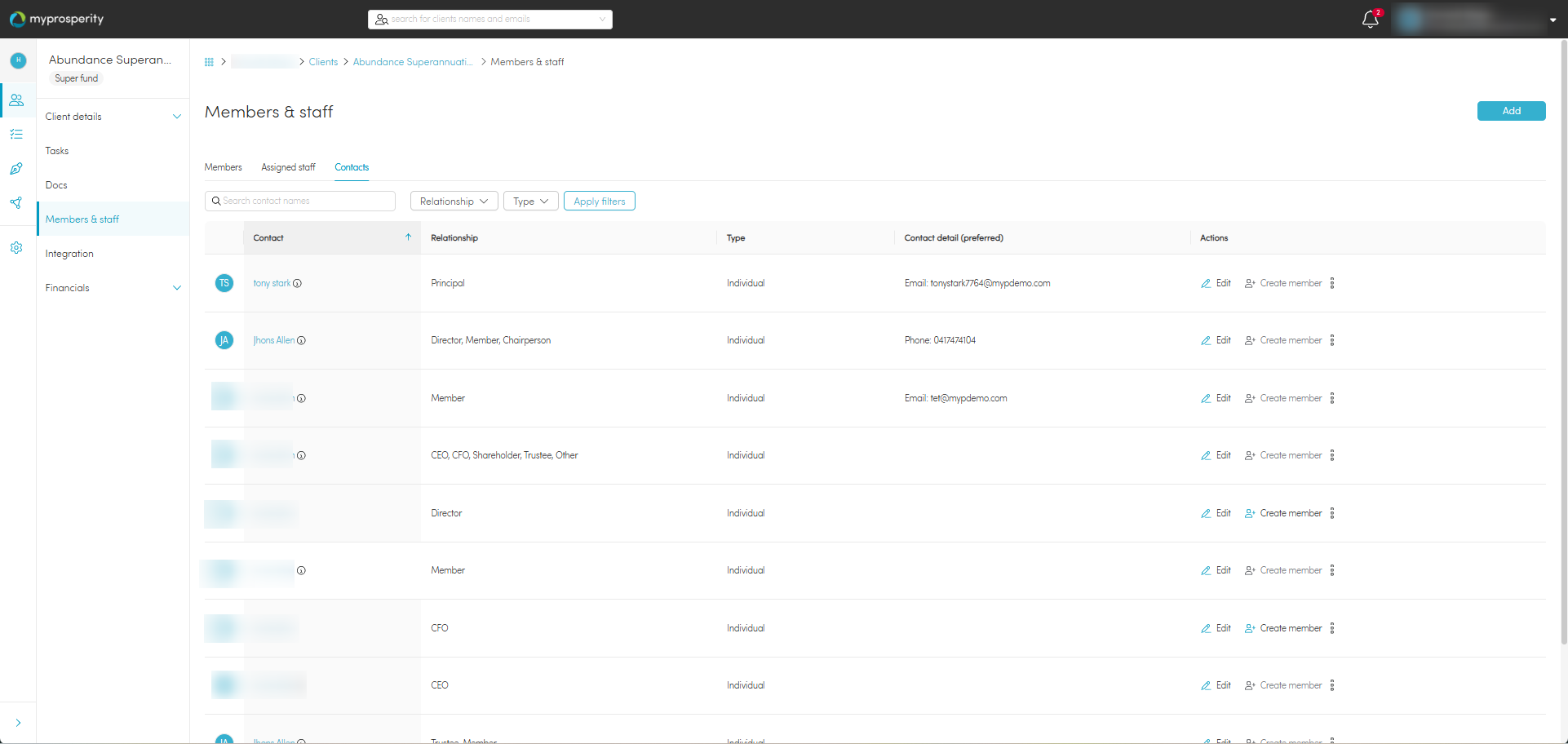
Contacts
Contacts are individuals or entities synced from Class, such as business contacts, fund contacts, or fund partners - who are associated with a client or fund. These contacts are visible within the portal for record-keeping and role assignment but do not have access to financial data or portal functionality unless they are converted into members.
The 'Create Member' function allows users to manually link a contact to a member profile, granting them portal access. If the contact is already linked to a member, this section will appear greyed out, indicating that no further action is required.
When initiating member creation, users may be prompted to either continue creating a new member or link to an existing member, depending on whether a matching profile already exists.
Additionally, the information tooltip beside the contact’s name provides visibility into which member the contact is currently connected to, helping avoid duplication and ensuring accurate linkage.
Integration
This section allows you to view any Class business integrations currently linked to this profile, along with a complete history of integration activity, including date-stamped actions triggered by each integration.
Each linked business will be listed in blue text, and if multiple businesses are connected, they will all appear in this section. This provides a clear view of which Class data sources are contributing to the client’s financial information.
On the 'Integration History' tab you’ll find a detailed log of all Class integration actions related to the client record. This includes:
- Operation Name – the type of action performed (e.g. data import or update)
- Integration Name – the connected integration that executed the action (e.g. Class)
- Start Date – the date and time the operation occurred
- Created By – the staff member who triggered the action
- Status – the current state of the operation (Complete, In Progress, or Failed)
You can also use filters to narrow down the results by operation name, integration name, or through More Filters, which allow filtering by time range, staff name, and status.
Financials
The Financials tab in the portal provides a consolidated view of a client’s financial position, segmented into two key sections: Overview and Portfolio.
Overview
This section displays high-level financial metrics including entity valuation, pensions, and contributions. The data is sourced from Engage, HUB24’s integrated data platform, which aggregates and enriches account and asset data from Class and other systems. Engage ensures consistent and structured presentation of financial data across entities, enabling advisers to quickly assess a client’s position. A visibility toggle is available for each feature, allowing advisers to control whether the client can view specific data points such as valuations or contribution history.
Portfolio
The Portfolio section provides detailed insights into a client’s asset allocation, investment holdings, and asset strategy. It includes breakdowns of investment types, performance metrics, and strategic positioning. This data supports both advisers and clients in understanding how assets are distributed and aligned with financial goals. Like the Overview section, each feature in the Portfolio view includes a toggle to enable or disable client visibility, giving advisers control over what information is shared.
Asset Allocation
Investments
Asset Strategy